Audio Editor Online
Cut, trim, fade and export your recordings online
Need a recording first? Open the recorder
More tools
Need a format-specific editor? Pick the one that fits your file.
Audio Editing Online
This is a waveform editor that runs in your browser tab. Open something you recorded here or drag in a file, select the part you care about, then cut it, trim it or fade it. When it sounds right, export a WAV or an MP3.
Most people come to tidy a voice recording: chop the dead air off the start, take out a cough, bring a quiet take up to a normal volume. Music clips and ringtones work the same way, because an edit is just a selection and something you do to it.
Your audio is decoded and edited on your own device and is never uploaded, which matters if the file is an interview or anything private. The buttons are sized for fingers, so editing on a phone works, though a mouse is still quicker for precise selections.
How to Use the Audio File Editor
Open a recording from your library, or drag an audio file onto the editor. It appears as a waveform you can zoom and scroll.
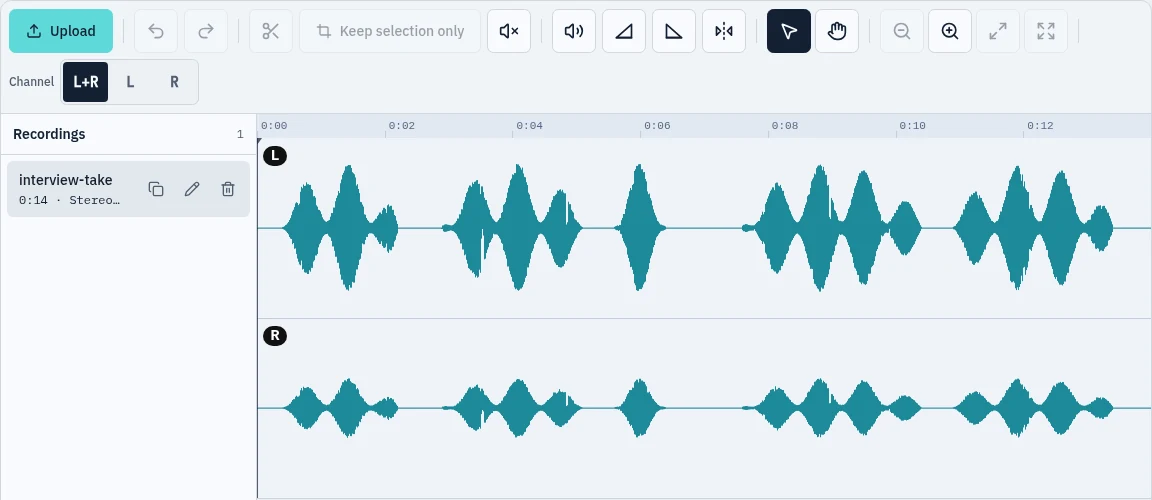
Drag across the waveform to select the part you want to work on. Press play to hear just that part before you change anything.
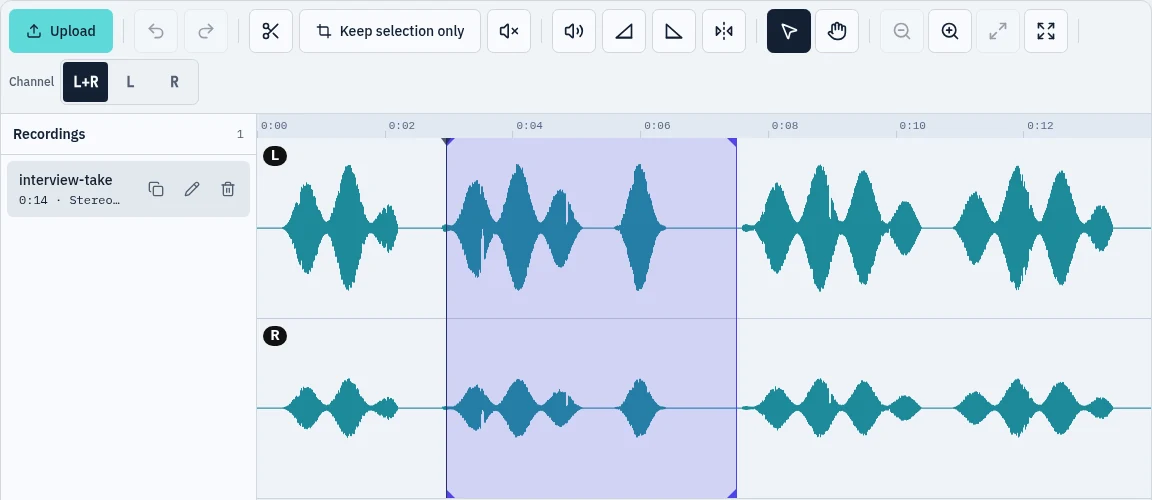
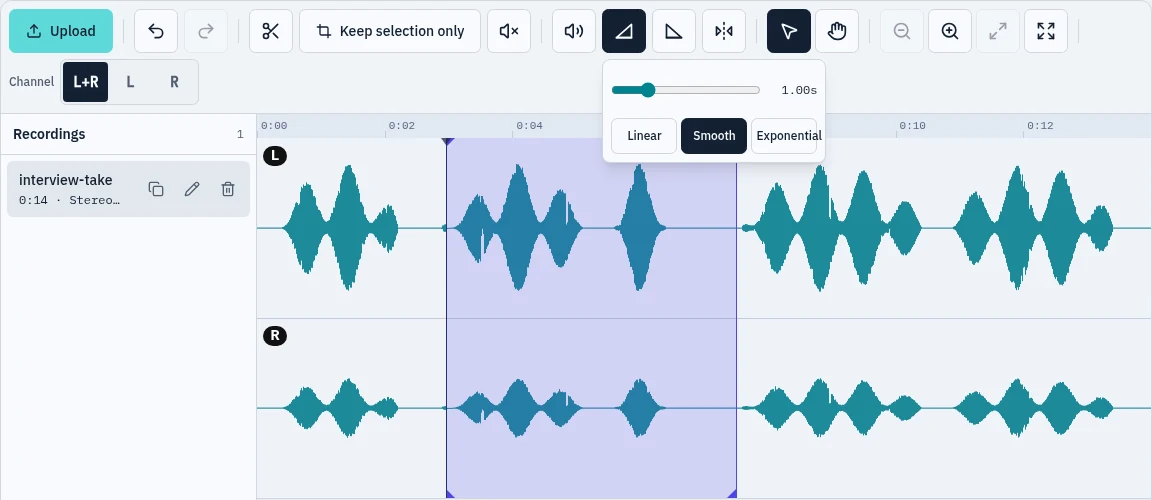
Cut, trim or split the selection, or apply a fade, normalize the volume or remove silence. Every change can be undone.
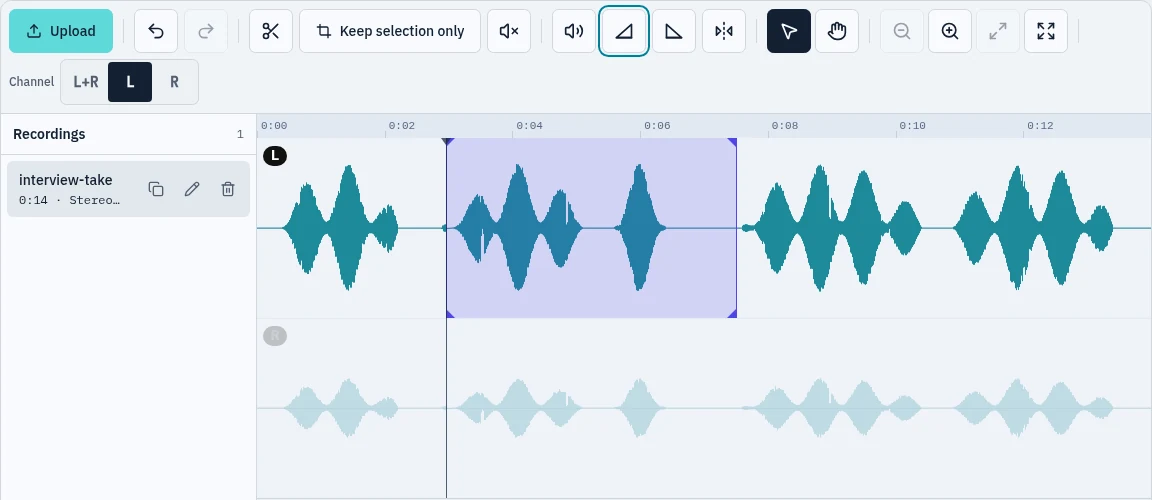
Choose L or R to hear and edit one channel on its own, or leave both selected to work on the whole recording.
Export the result as a WAV or an MP3 and save it to your device.



Features of Audio Editing Tool
- Cut, trim and split
- Select a range and delete it, or keep only that range and throw the rest away. Split divides the clip into separate pieces. If you missed by a few milliseconds, drag either edge of the selection.
- Fades you can hear while you set them
- Open the fade menu, drag the length and pick a curve. It changes while the audio plays, so there is no apply button and no restarting to compare.
- Normalize and remove silence
- Normalize raises a quiet recording to a sensible peak level. Trim silence drops the long gaps. The volume control handles the rest.
- Left and right on their own
- Switch the target to L or R and every edit only touches that side. Both lanes stay on screen, the unused one dims, and playback plays just the side you picked. Go back to L+R to hear everything again.
- Markers, undo and looping
- Drop a marker where something happens, loop a selection to check a cut, and undo anything you regret.
- WAV or MP3
- Pick the format under the waveform and press Download. WAV keeps full quality and makes a big file. MP3 is small and fine for sharing.
FAQ
Is this online audio editor free?
Yes. There is no sign-up and exported files carry no watermark.
Are my audio files uploaded anywhere?
No. Your browser decodes and edits the file and the result is built on your device. Nothing is sent to our servers.
Which audio files can I open?
Anything your browser can play, which usually means MP3, WAV, M4A, AAC, OGG, FLAC and OPUS. Support differs a little between browsers, so if one file will not open, convert it to WAV or MP3 and try again.
Can I edit only the left or right channel?
Yes. Choose L or R next to the waveform. Cuts, fades, mute and the rest only change that channel, and playback only plays it. Choose L+R to edit both again.
What can I export to?
WAV or MP3. WAV keeps full quality and weighs more. MP3 weighs far less. Use the format menu under the waveform, then press Download.
Does it work on a phone or tablet?
Yes. The buttons are big enough to tap. Selecting an exact range is easier with a mouse, but trimming, fading and exporting are fine on a phone.
Audio Recorder Online
Record, edit and download playback audio online
About online audio recorder
This is a voice and audio recorder that runs in your browser tab. Press Record, allow the microphone, and you are capturing sound with a live waveform and a level meter, with nothing to install and no account to make.
Choose which microphone to use, record in Mono or Stereo, drop markers on moments you want to find again, and pause whenever you need to. Each take is saved to a list where you can play it, download it, delete it or open it in the editor.
Your recordings stay on your own device and are never uploaded, which suits interviews, voice notes and anything private. The buttons are sized for fingers, so recording from a phone or tablet works as well as it does on a desktop.
How to Use the Audio Recorder
Press the red Record button and allow microphone access when your browser asks. Pick a different input from the list if you have more than one microphone, and choose Mono or Stereo.
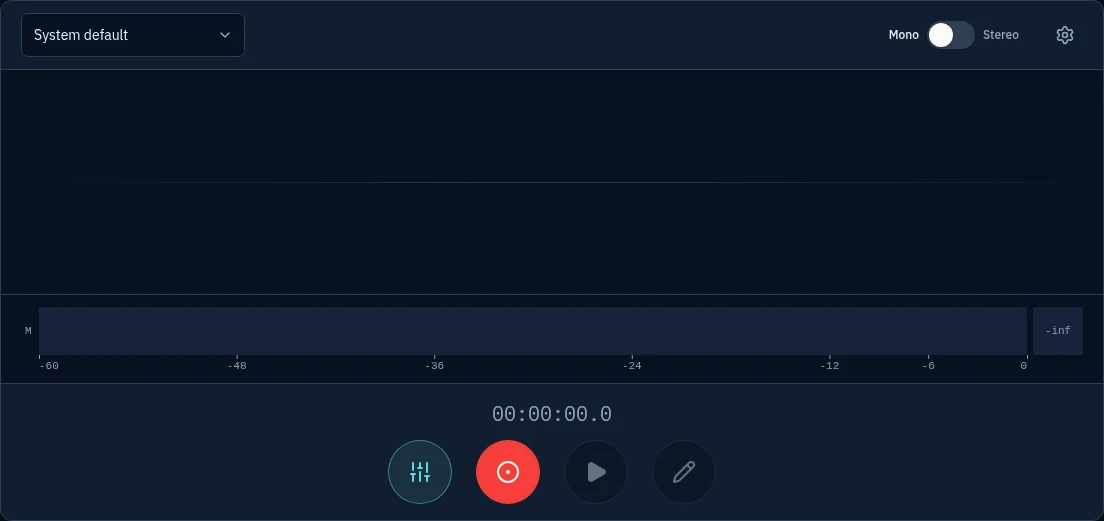
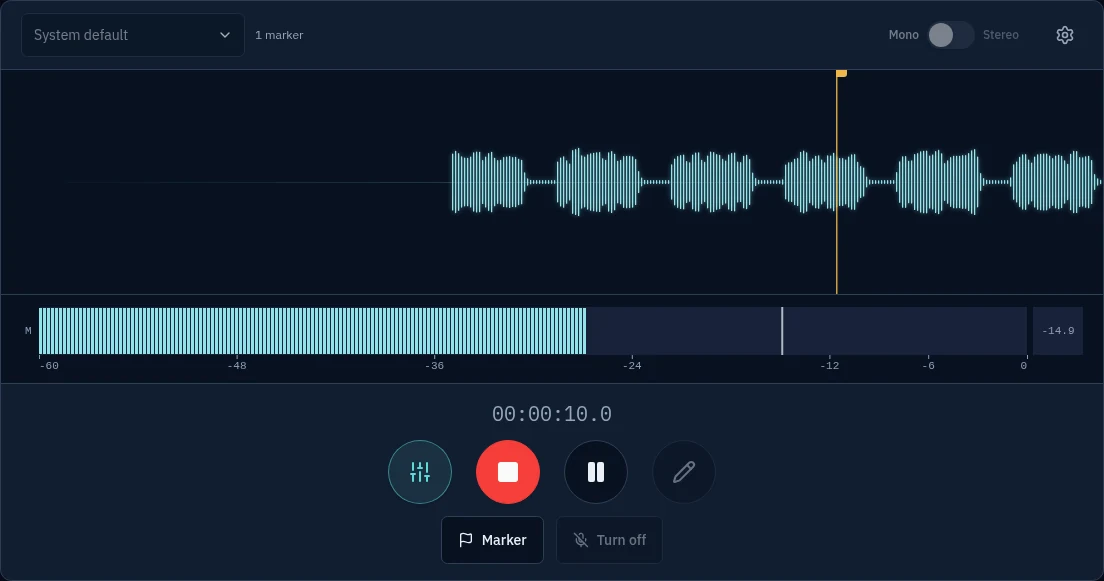
Talk or play. The waveform scrolls as you record and the level meter shows how loud you are. Press Marker to flag a moment you want to find again, or Pause to take a break.
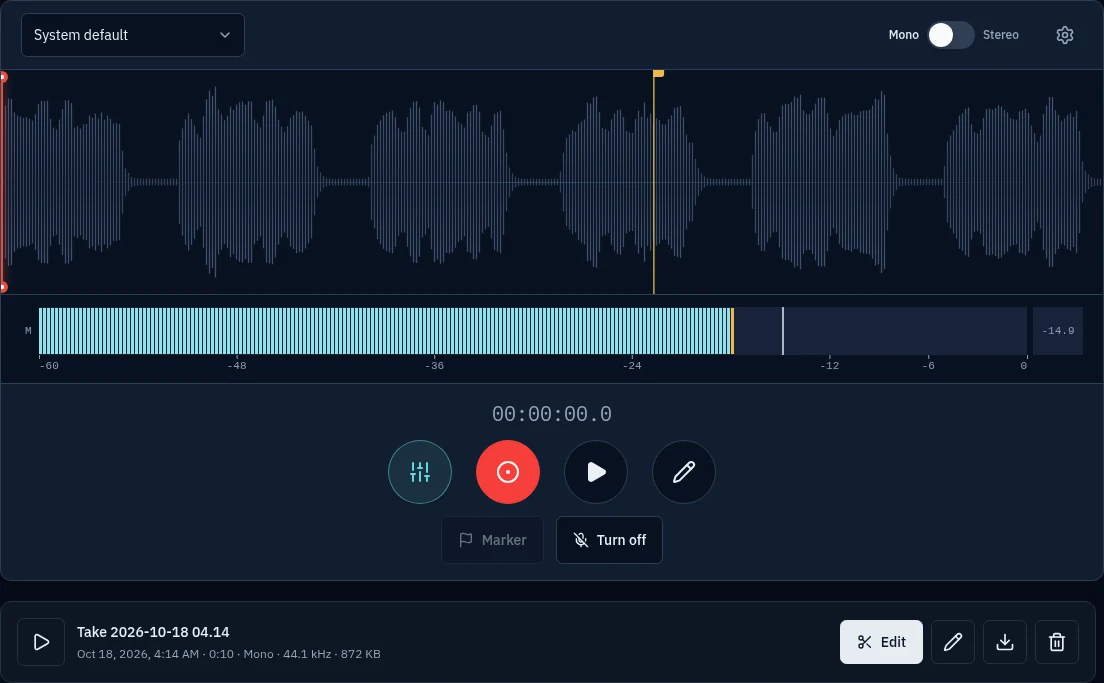
Press Stop to save the take. It appears in your list, where you can play it, open it in the editor, download it or delete it.
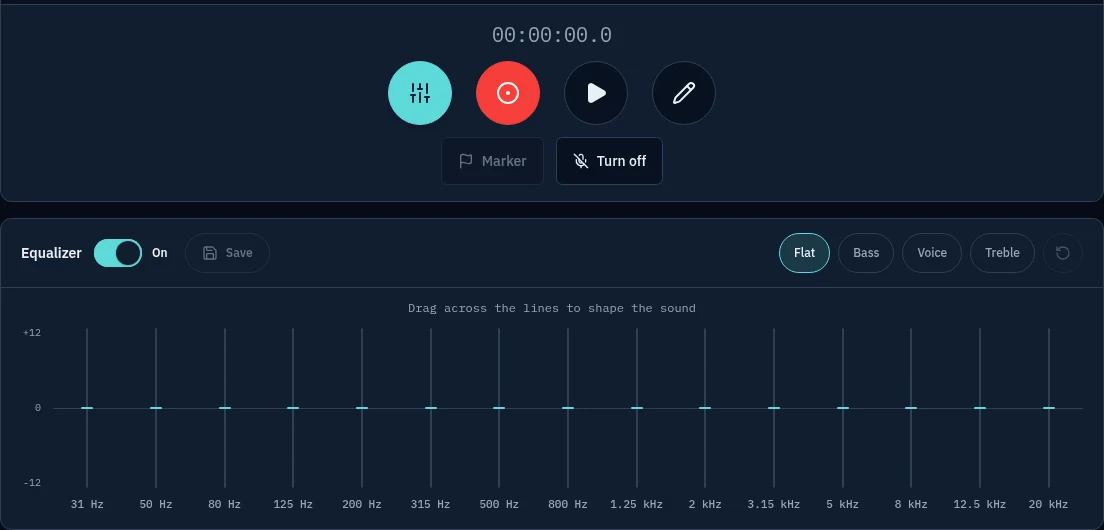
Open the equalizer to shape the sound with Bass, Voice or Treble presets, or drag the bands yourself, then save the result.


Audio Recorder Features: Microphone Choice, Markers, Equalizer and Private Recording
- Pick your microphone
- Choose any microphone or audio input connected to your device, and record in Mono for a single voice or Stereo for a wider sound.
- Live waveform and level meter
- Watch the waveform scroll as you record and keep an eye on the level meter, so you can spot a signal that is too quiet or too loud while there is still time to fix it.
- Markers and pause
- Press Marker to flag a moment you want to find again, and pause and resume as often as you like without splitting the take into pieces.
- A list of your takes
- Every recording is saved to a list where you can play it back, download it, delete it, or open it in the audio editor to cut and clean it up.
- Built-in equalizer
- Shape the sound with fifteen bands from 31 Hz to 20 kHz. Start from the Flat, Bass, Voice or Treble preset, then drag the bands to taste.
- Private and works on any device
- Recordings stay on your own device and are never uploaded. There is nothing to install and no account to make, and the large buttons work as well on a phone or tablet as on a desktop.
FAQ
Is this online audio recorder free?
Yes. There is no sign-up, no time limit set by the tool and no watermark.
Are my recordings uploaded anywhere?
No. Recording happens in your browser and the audio stays on your own device. Nothing is sent to a server.
Can I choose which microphone to use?
Yes. Once you allow microphone access, pick any connected input from the list, such as a built-in mic, a headset or a USB microphone, before you start recording.
What are markers for?
Press Marker while you record to flag a moment, like the start of a new topic, so it is easy to find again later.
The browser says the microphone is blocked. What do I do?
Click the lock or settings icon next to the web address, set Microphone to Allow, then reload the page and press record again.
Does it work on a phone or tablet?
Yes. The recorder is built for touch, so the large buttons work the same on a phone or tablet as on a desktop.